Photography File Backup Workflow: A Practical 3-2-1 System From Memory Card to Client Delivery
Build a practical photography backup workflow using the 3-2-1 system, from memory cards and working drives to cloud backup, client delivery and long-term archive.


A photography backup workflow should not begin when you remember to plug in an external hard drive. For a professional photographer, it begins when the photograph is written to the memory card and continues through ingestion, editing, export, client delivery and long-term storage. At every stage, the question is the same: if this device failed right now, could we recover the photographs without calling the client?
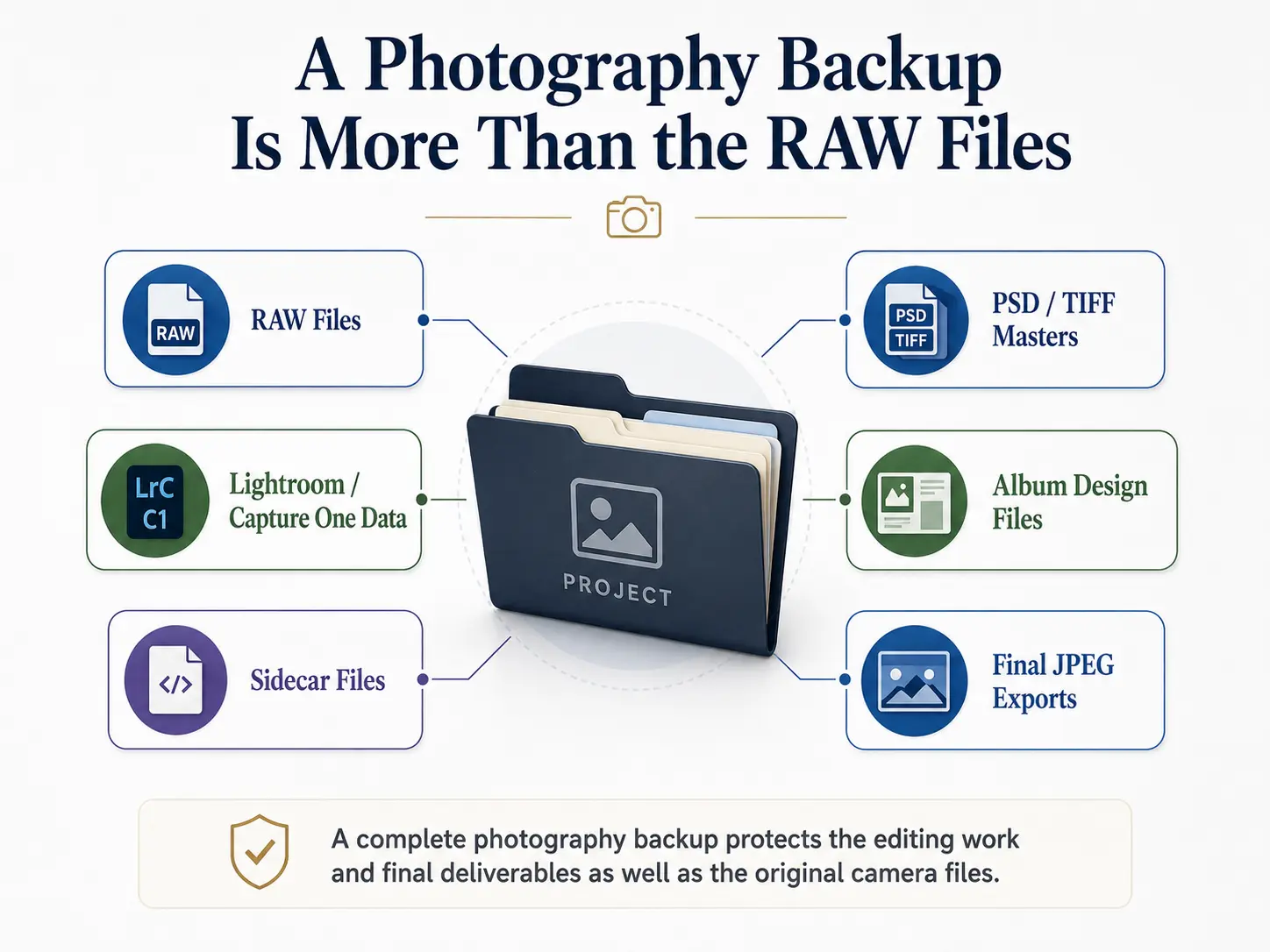
That distinction matters because photography files change as a job progresses. The RAW files coming out of the camera are irreplaceable. During post-production, the Lightroom data, retouched PSD or TIFF files and other working files become valuable too. After editing, the final JPEG exports need protection. Once a gallery has been delivered, the studio still needs an archive policy rather than assuming an online delivery link is a permanent backup.
A practical photo backup system therefore needs to follow the photographs through the entire job.
What the 3-2-1 Backup Rule Means for Photographers
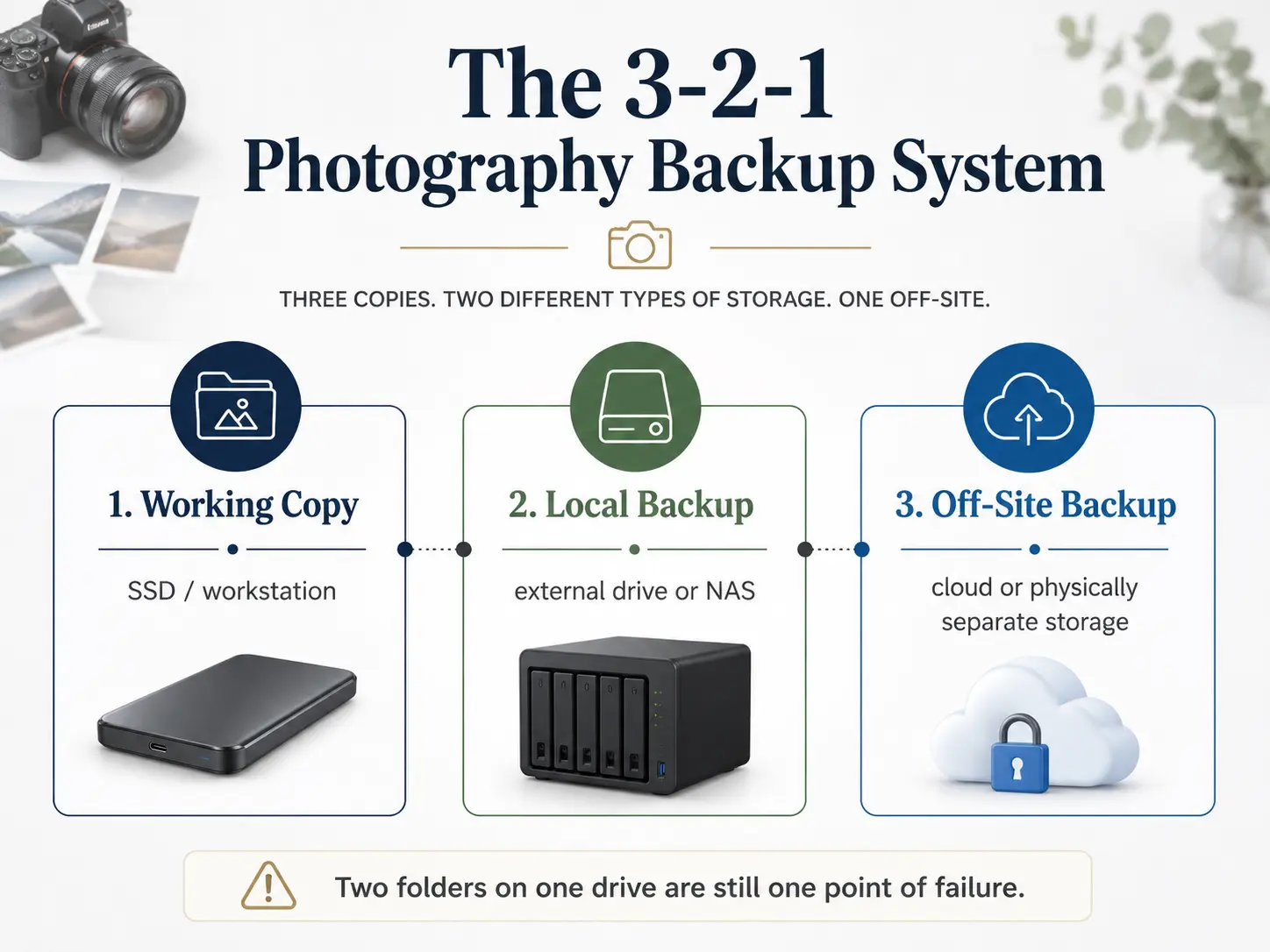
The traditional 3-2-1 backup rule calls for three copies of important data, stored across at least two different storage devices or media, with one copy kept off-site. A modern photography setup might therefore have the active project on a working SSD, another copy on a separate external hard drive, and a third copy with an off-site or cloud backup provider.
The important part is independence. Two folders on the same SSD are not two backups. Two drives sitting inside one bag solve the drive-failure problem but not the stolen-bag problem.
For photographers, it is more useful to think of the system as:
Working copy → local recovery copy → geographically separate recovery copy
That structure can remain the same whether you are a solo wedding photographer with a laptop and two drives or a larger studio editing from network storage.
The Backup Workflow Starts With the Memory Cards
For cameras with dual card slots, recording simultaneously to both cards can reduce the risk between capture and ingestion. It should not be confused with a complete backup system, because both cards are normally travelling with the photographer, but it gives an irreplaceable shoot another layer of protection before the photographs reach the studio.
Card handling matters just as much. Finished cards should be clearly separated from empty cards and should not return to circulation simply because someone has copied the photographs onto a laptop. For teams covering weddings or multi-day events, a labelled card case organised by photographer, camera or event can prevent an assistant from accidentally formatting the wrong card during a busy shoot.
The safest operational rule is simple: a memory card is not ready to be formatted until the studio can confirm that the files exist independently elsewhere. For particularly valuable or non-repeatable assignments, keeping the cards untouched until the complete 3-2-1 chain has been established provides a stronger safety margin. That may require owning more cards, but additional card capacity is usually far less consequential than discovering that the only usable copy of a wedding disappeared with a failed SSD.
Ingest to Working Storage and a Separate Local Backup
Once the cards reach the workstation, create the primary working copy on storage fast enough for the editing workflow. For many photographers this will be an internal SSD. Studios dealing with several photographers or editors may instead ingest directly to shared storage.
At the same time, create another copy on a different physical device. That could be a high-capacity external hard drive, another storage server. Lightroom Classic can create a second copy of original photographs during import, although Adobe explicitly describes this as a one-time copy of the originals rather than a replacement for an ongoing backup strategy.
A consistent photographer file storage workflow also makes backups easier to audit. Instead of allowing every editor to invent a folder structure, use something predictable, for example:
2026 / 2026-08-22_Client_Project / 01_RAW / 02_Selects / 03_Edit / 04_Exports
The exact naming system is less important than consistency. If the entire job lives inside a defined project directory, backup software can protect the complete assignment rather than leaving an important retouching folder or exported file sitting somewhere on a desktop.
Where possible, use file-copy or ingestion software capable of verification rather than assuming that a completed progress bar guarantees every file was copied correctly.
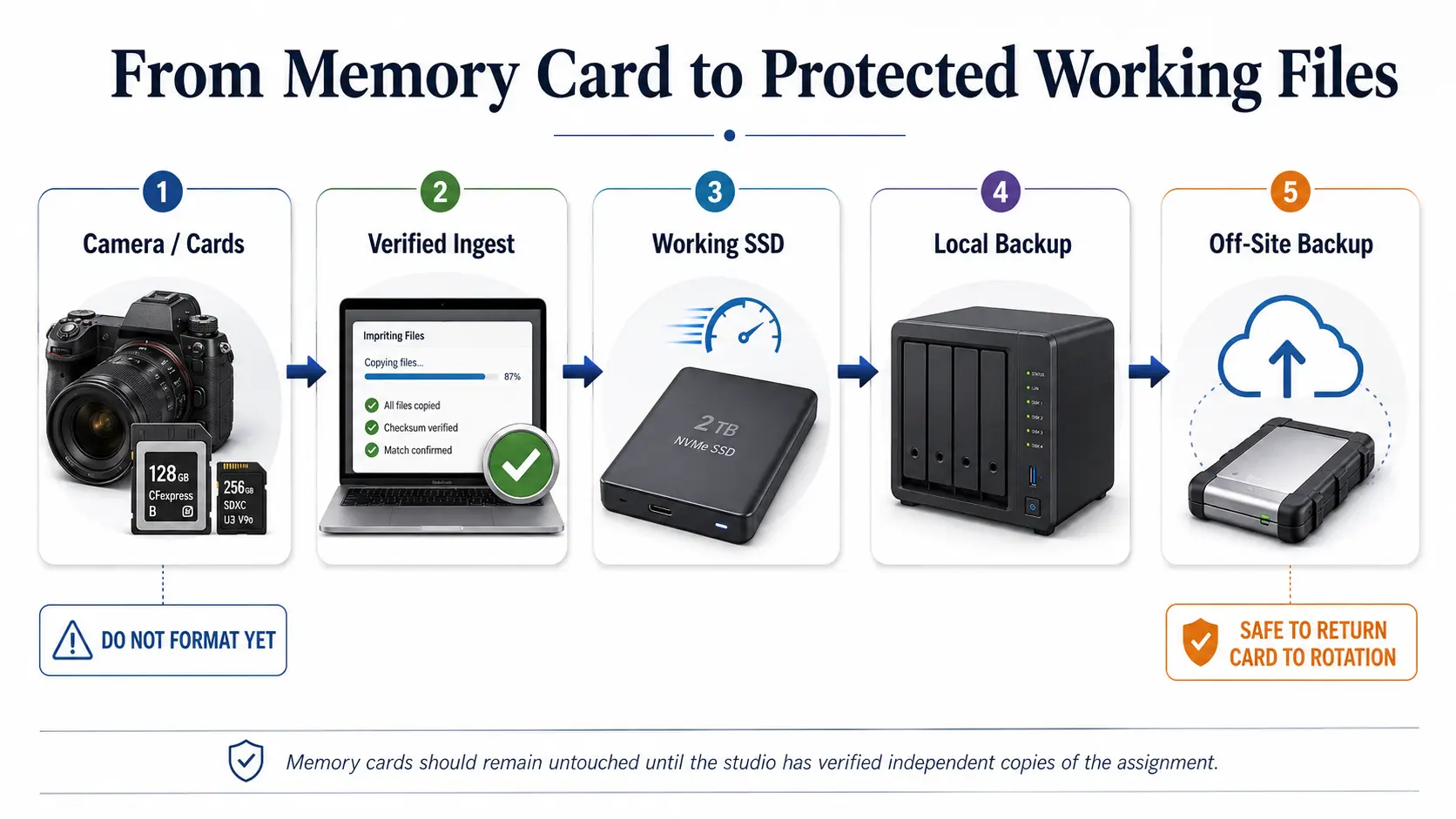
Do Not Reuse the Cards Before the Off-Site Copy Exists
The local backup protects you from the most common immediate problem: failure of the working drive. It does not protect the studio against theft, fire, flooding or another event affecting everything in the same location.
The third copy therefore needs physical separation.
For most studios, an automated cloud backup for photographers is easier to maintain than manually rotating hard drives between locations. A physical off-site drive can still work, particularly for studios with very large archives or limited upload bandwidth, but somebody must consistently update and move it. Automation usually wins because a backup system that depends on someone remembering a repetitive task eventually develops gaps.
When comparing a cloud backup solution for photography files, look beyond the advertised storage capacity. Check whether the service backs up external drives, how long deleted-file versions remain recoverable, what downloading or restoring several terabytes would involve, and whether there are retrieval charges or retention rules that affect your archive.
Cloud Sync and Cloud Backup Are Not Automatically the Same Thing
A folder synchronized with Google Drive, Dropbox, OneDrive or another cloud service can be useful, but sync should not automatically be treated as the off-site backup in a 3-2-1 system. Synchronisation is designed to propagate changes. If a file is deleted or corrupted locally, that change can also propagate to connected copies. Some services provide version history and deleted-file recovery, which reduces this risk, but the recovery period and behaviour need to be understood before relying on them.
A proper backup system should give the studio a recoverable historical copy rather than merely another current representation of the working folder.
This distinction becomes particularly important once several editors have access to shared project storage.
Your Editing Files Need Backups Too
After ingestion, protecting only the RAW photographs is no longer enough. Editing creates new information that may represent many hours of work.
Lightroom photographers need to protect the catalog as well as the photographs it references. Adobe specifically warns that backing up a Lightroom Classic catalog does not back up the photographs themselves. Catalog backups and the actual image files therefore need their own backup coverage. Adobe also identifies the .lrcat-data file as important for information associated with features such as AI edits.
The same principle applies regardless of editing software. Include sidecar files, retouched masters, album designs, exported high-resolution JPEGs and other project files that would be expensive or impossible to reconstruct.
A useful test is to imagine the editing computer disappearing halfway through the job. Your photography backup workflow should allow another machine to recover not just the original photographs, but enough project data to continue the work.
Client Delivery Is a Different Layer From Backup
Once the files are exported, delivery begins. This is where studios should separate two jobs that are often mixed together: protecting files and presenting files to the client.
Google Drive, generic cloud folders and file-transfer services can move photographs between two people. A professional client gallery is designed around viewing, organisation, selections, controlled downloads and the client-facing presentation of the finished work.
With GoPickle Client Galleries, for example, studios can organise finished photographs into client-facing collections, control downloads and access, support favourites and provide a branded gallery rather than sending clients into the studio's underlying storage structure. For large deliveries, our guide to sharing large photo albums without confusing clients explains why separating storage organisation from client presentation usually creates a cleaner final handoff.
That gallery should still be treated as the delivery layer, not as the only remaining archive of the assignment. The photographer should retain the master files according to the studio's own contractual and retention policy even after the client has downloaded the gallery.
Move Completed Jobs Into an Archive Deliberately
After client delivery, there is no reason for every completed wedding, portrait session or commercial assignment to remain on expensive high-speed working SSD storage. But deleting a project from the working drive should be a controlled archive step rather than a space-clearing exercise.
A finished archive might contain the retained RAW files, final selects, important retouched masters, final full-resolution exports, Lightroom or Capture One project data and any other material the studio would need if a client returned later. The archive then continues to follow the same principle: a local storage copy plus an independently recoverable off-site copy.
Studios should also define how long different types of files are retained. You may choose different retention periods for rejected RAW files, selected RAW files, final exports and client galleries. What matters operationally is that the policy is documented and communicated rather than depending on whichever team member happens to need disk space that week.
Before removing the project from working storage, test that an archived file can actually be restored. A backup dashboard saying “complete” is useful; opening a recovered RAW, catalog and final JPEG is better.
Storage protects the photographs. Backup protects the business if that storage fails. Delivery gives the client access to the finished work. Archive determines what remains recoverable months or years later. Treating those as separate stages gives photographers a much stronger system than simply buying another hard drive.
Once that protection layer is established, the final handoff can be built around the client instead of the file system. If your studio is still sending finished jobs through generic folders, you can compare that workflow with professional client galleries for photographers or explore GoPickle's photography business workflow.