How to Merge Files From Multiple Photographers Without Breaking the Wedding Timeline
Learn how to merge second shooter photos, sync multiple wedding cameras, preserve metadata, match colour and build one chronological gallery.

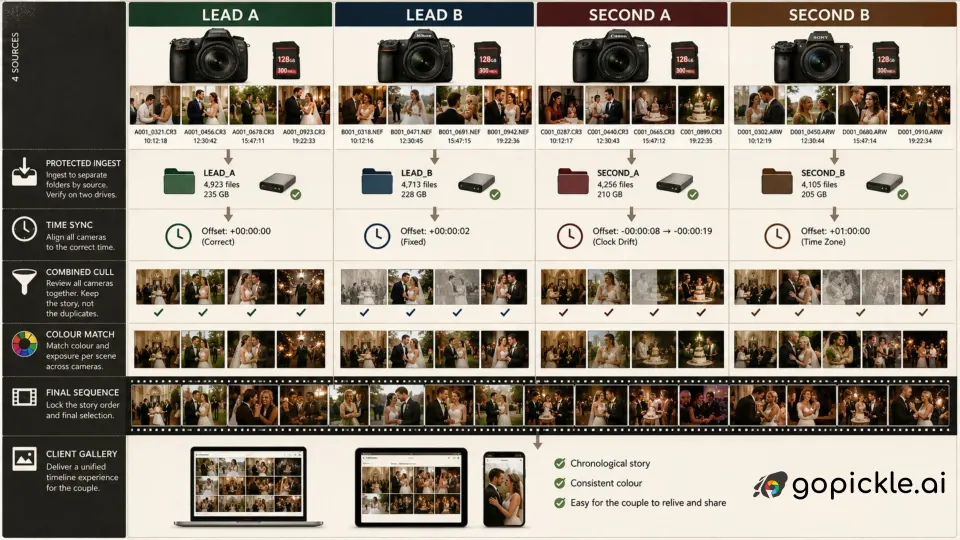
A second photographer solves a coverage problem on the wedding day, then creates a file-management problem afterwards. The lead may come home with two camera bodies, the second shooter with another two, and several cards may contain overlapping filenames such as DSC_0001. Even when every file is safe, the sequence can still break because one camera is three minutes fast, another is on the wrong time zone, or one clock has drifted during a long day.
A reliable wedding photography file workflow should preserve the originals, identify where every frame came from, correct capture-time differences, let you cull all photographers as one story, and only then create the final sequence the client will see. If you merge second shooter photos before fixing those basics, reactions can appear before the moments that caused them and the final gallery starts to feel disjointed.
Synchronise every camera before coverage starts
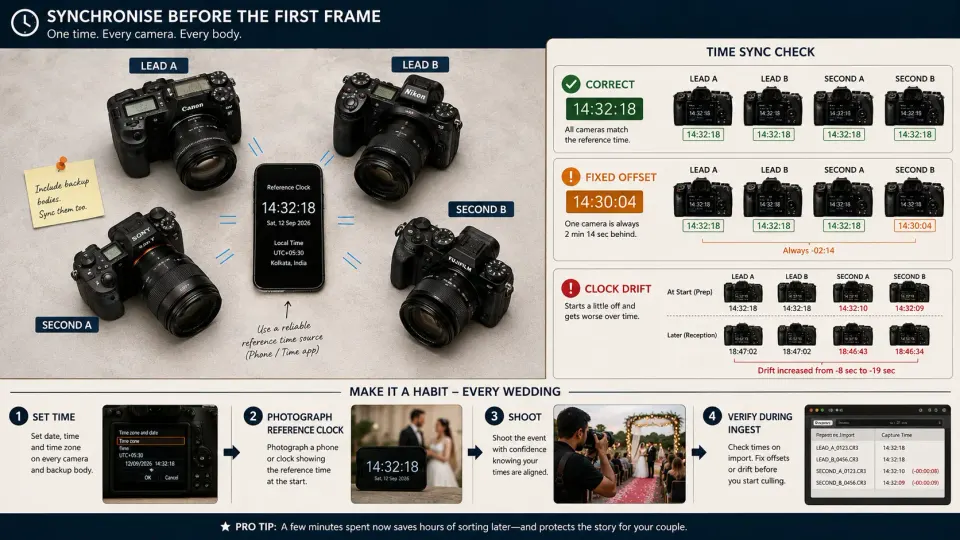
The easiest time to repair a multi-camera timeline is before anyone takes the first photograph. Put every active body beside the same reliable clock, set the date, local time and time zone correctly, and match them as closely as practical to the same second. Include backup bodies; synchronising only the two primary cameras still leaves other files capable of falling out of sequence.
For long or multi-day weddings, add a reference frame. Have each photographer photograph the same phone or clock showing the current time before coverage begins, then repeat the check at the start of the next day. That frame gives the editor a visual checkpoint if EXIF times later disagree.
Make this part of the crew brief rather than an informal reminder. If your studio works with freelancers, GoPickle's Crew Management for photographers can keep the photographer, event and handoff responsibility connected to the booking; camera synchronisation itself still belongs in the shoot-day checklist.
Give cards and folders clear ownership
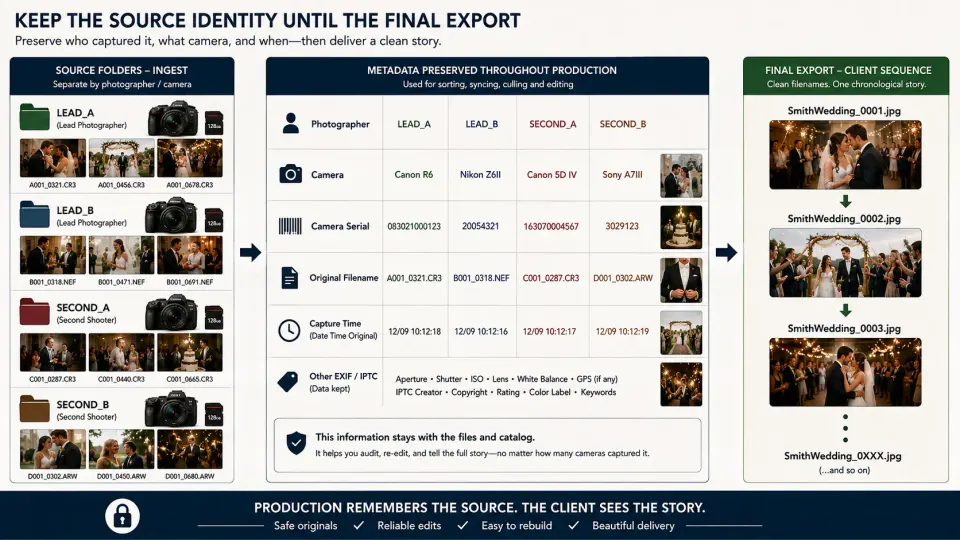
Do not dump every card into one undifferentiated RAW folder. Duplicate camera filenames are common, and once several photographers are mixed without source information, reconstructing ownership becomes unnecessary detective work.
A safer ingest structure keeps source folders separate at first:
2026-09-12_Smith-Wedding/
  01_RAW/
    LEAD_A/
    LEAD_B/
    SECOND_A/
    SECOND_B/
  02_CATALOG/
  03_SELECTS/
  04_RETOUCH/
  05_EXPORTS/
The labels can use photographer initials, camera IDs or both. Label physical cards the same way and define who owns the handoff. A finished card should move into the "used" section of the card case and should not be formatted merely because someone has copied it to a laptop.
Before cards return to service, verify independent copies. Our 3-2-1 photography backup workflow covers the wider protection model. For an irreplaceable wedding, ingest and backup are separate steps: one folder on one SSD is still one copy.
Preserve photographer and camera identity
Source identity remains useful after ingest. It tells you which photographer captured a frame, which camera needs colour correction, whether one body has a recurring exposure problem and which files need a capture-time adjustment. Do not throw that away simply because the final gallery will use clean sequential filenames.
Retain the original filename and camera EXIF data. Where your workflow supports it, add an IPTC Creator or photographer code during ingest and keep a camera identifier in the working filename. Photo Mechanic, for example, exposes camera serial-number variables and can use them during ingest renaming, which is useful when multiple bodies produce overlapping file numbers. A working name such as SS-RK_CAMA_4832.CR3 is far safer than four unrelated cameras all producing IMG_4832.
Avoid destructive cleanup that strips metadata or overwrites the only original. The merged catalog is a working version of the wedding, not a replacement for the source files.
Correct clock offsets before sorting the wedding
After the files are safely ingested, sort by capture time and look for contradictions. A processional should not appear twice; a toast should not land before the speaker reaches the microphone. Shared moments visible from two cameras are useful anchors for finding an incorrect clock.
A fixed offset means one camera is consistently, for example, 2 minutes 14 seconds slow. Find the same moment on that camera and a correctly timed one, calculate the difference, then shift the affected camera's photographs by that amount. Lightroom Classic supports changing capture time for a group of selected photographs and applies the adjustment across the selection. Adobe also documents that this changes Date Time Original metadata, so make the correction only after the originals are protected.
Clock drift needs a different treatment. If a camera is 8 seconds slow during preparation but 19 seconds slow by the reception, one global correction will still leave parts of the day wrong. Split that camera's files into logical time blocks and correct each block against an anchor near that part of the wedding. For a destination wedding with a full-hour time-zone error, fix the large offset first, then check for smaller drift.
Cull by event and narrative, not by photographer
Once capture time is trustworthy, bring the views together and cull by event: preparation, ceremony, portraits, speeches, reception, or whatever structure fits that wedding. For multi-day celebrations, use the couple's actual event structure rather than forcing every job into one generic sequence.
Review overlapping coverage together. If the lead photographer captured the kiss and the second shooter captured the parents' reaction a second later, those photographs should be judged as a sequence. Culling the lead photographer completely first and the second shooter later often keeps too many duplicates or hides the stronger alternate angle.
Chronology is a foundation, not a rule that overrides storytelling. A reaction can sit beside the moment it belongs to even if the timestamps differ slightly. The finished gallery should feel coherent, not mechanically sorted.
Colour-match different cameras scene by scene
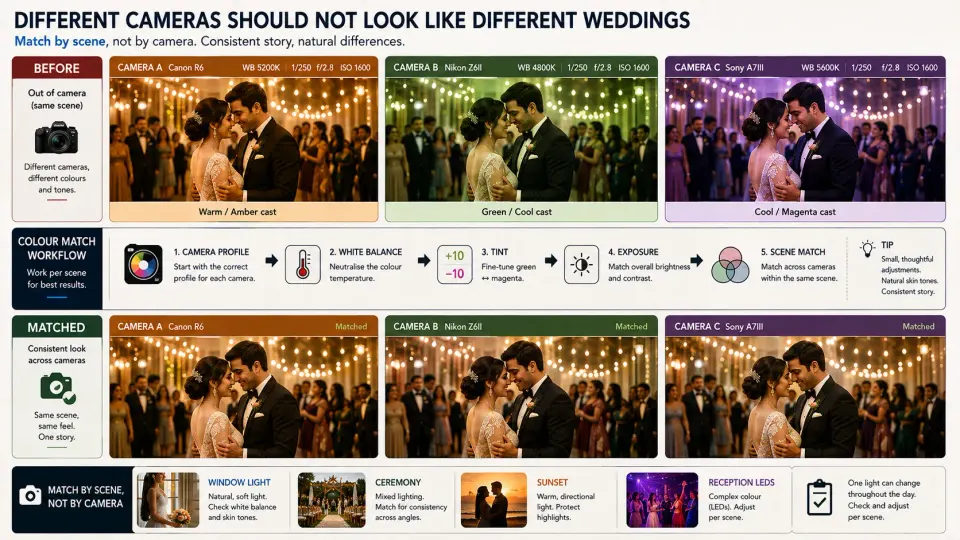
Different camera bodies do not automatically render skin tones, greens, reds and mixed reception lighting identically, even with the same Kelvin setting. RAW converters also apply camera-specific profiles, so one preset pasted across every file is rarely the whole answer.
Choose a representative image from each camera under the same lighting. Establish the appropriate camera profile, then match white balance, tint, exposure and contrast around a neutral reference or consistent skin tone. Lightroom Classic can synchronise develop settings across batches, but it is usually cleaner to sync within a camera-and-lighting group rather than across the entire wedding. Capture One also uses camera-specific ICC profiles, and its ProStandard profiles are intended to improve colour consistency across supported camera models.
Work by scene. Window-light preparation, open-shade portraits, a dim ceremony and an LED-heavy dance floor are different colour problems. The client should not be able to tell that the gallery changed camera systems every few photographs.
Rename after the final sequence is locked
Keep source-aware working names while you ingest, sync, cull and edit. Do not assign final client-facing sequence numbers early.
If 900 selected photographs are renamed to SmithWedding_0001 through SmithWedding_0900 and you later discover that 40 second-shooter frames are still an hour out of time, the whole sequence needs another pass. Late culling creates the same problem.
Once the selection, edits and story order are approved, export or batch-rename the finished set into a clean sequence such as SmithWedding_0001.jpg, SmithWedding_0002.jpg and so on. Preserve the photographer and camera identity in the working files and metadata, not in the client-facing filename.
When the photographs move into delivery, organise them for the couple rather than for the editor. GoPickle Client Galleries for photographers can present finished work in client-facing collections with favourites, download controls and studio branding. LEAD_A and SECOND_B belong in production; "Ceremony", "Portraits" and "Reception" belong in delivery.
Archive source files separately
A finished chronological gallery is a derivative of the production files. Keep the protected source archive separated by photographer or camera so the project can be reconstructed if a catalog is damaged, an edit needs rebuilding or a client later asks about a particular photograph.
Retention depends on your contract, storage costs, privacy obligations and the value of recreating the work. Our guide to how long photographers should keep RAW files, edited photos and client galleries gives practical starting points without treating one period as a worldwide rule.
At GoPickle, we keep the boundary clear. Lightroom, Capture One, Photo Mechanic and similar tools handle image-level ingest, metadata and post-production. GoPickle's photography workflow software sits around that work, where bookings, crew responsibility, media handoffs and client delivery need to stay connected.
The cleanest way to merge second shooter photos is not to merge them as early as possible. Protect the originals, preserve their source, repair the clocks, then combine the photographs when chronology and storytelling need to become one. The final gallery should feel as though one photographer was everywhere, even though several cameras and several people made it possible.