Client Gallery Migration Checklist for Photographers: Switch Platforms Without Losing Albums, Access or Client History
Switching photography gallery software? Use this client gallery migration checklist to preserve files, collections, favourites, access, links and client history.


Switching client gallery software looks simple when you describe it as moving photographs from one platform to another. In practice, the photographs are usually the easiest part.
A live photography gallery can also contain collection structure, cover images, passwords, download permissions, client favourites, proofing decisions, notes, expiry rules, client email addresses and links that may already exist inside old emails, contracts or studio records. Some of those details can move between platforms. Others cannot. A gallery that appears to have migrated successfully can therefore still be incomplete from the client's point of view.
That is why a client gallery migration for photographers should be treated as a controlled handover rather than a bulk upload exercise.
At GoPickle, we recommend separating the job into three questions: which galleries still carry a client obligation, which information needs to survive the move, and when is it genuinely safe to switch off the old system?
This checklist covers that process from the first inventory through final validation.
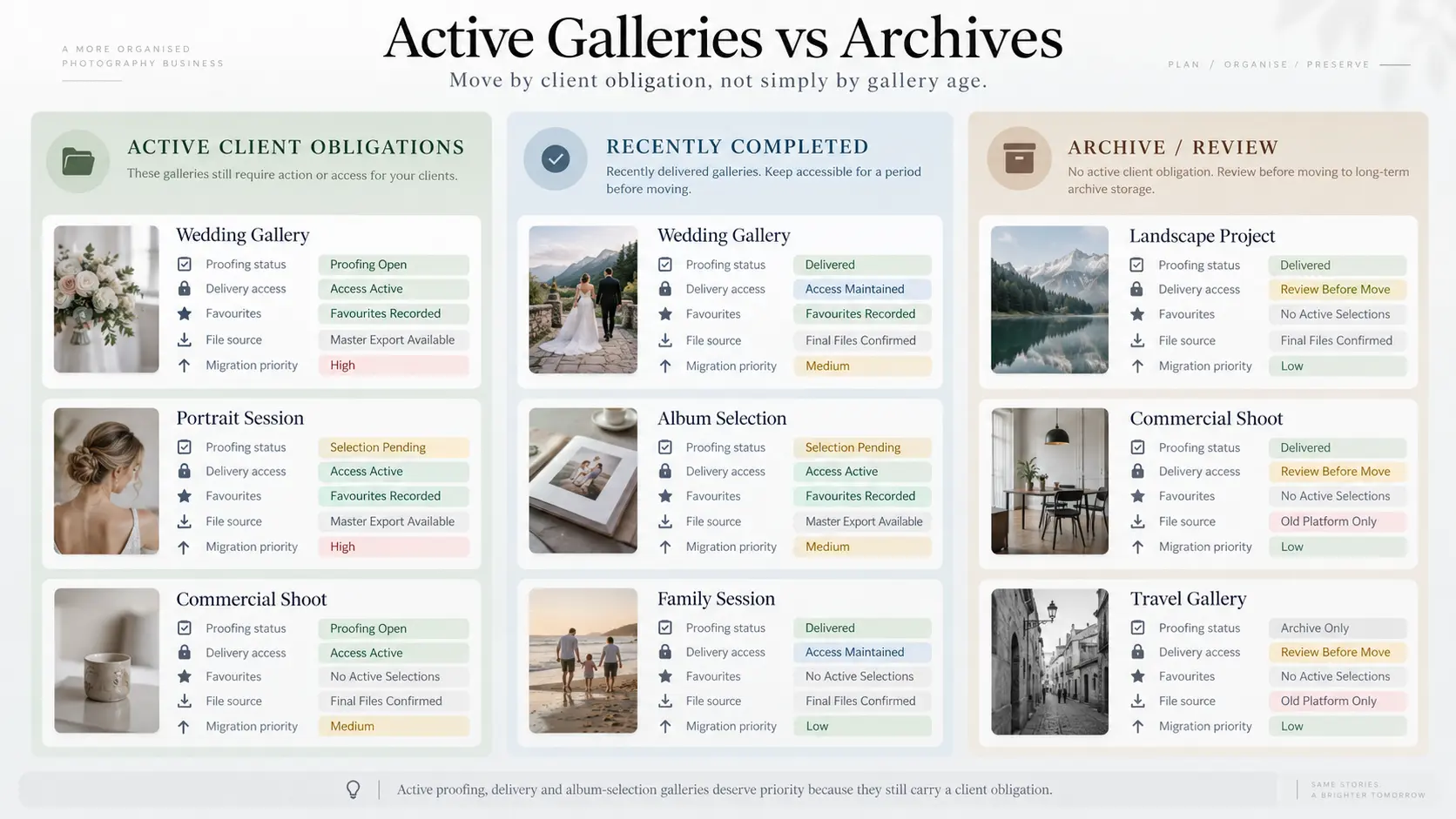
1. Inventory active galleries separately from archives
Do not begin a photography gallery software migration by selecting every gallery in the old platform and trying to move the entire library at once.
First classify what is actually there.
A five-year-old wedding gallery that has completed every contractual obligation does not have the same migration priority as a portrait proofing gallery where the client is choosing photographs this week. A recently delivered commercial gallery may contain download access that still needs to remain available. Another gallery may be technically live but have no remaining business value.
A practical migration inventory might classify galleries as:
| Gallery status | Typical situation | Migration priority |
|---|---|---|
| Active proofing | Client is still selecting, commenting or approving | Highest |
| Active delivery | Final photographs delivered and client access is still expected | High |
| Product workflow open | Album, print or other selection is still unresolved | High |
| Recently completed | Delivery is complete but access is still being maintained | Medium |
| Archive | Job is finished and retained for recovery or studio policy | Lower |
| Expired / no longer required | No remaining delivery or retention obligation | Review before migrating |
This distinction prevents a common migration mistake: spending hours rebuilding old galleries while a current client's selections or download access are at risk.
Create a simple migration register before touching the old account. At minimum, record the gallery name, client, job date, current status, number of collections, approximate image count, source of the final files, existing gallery URL, access settings, whether favourites or selections exist, and the intended action on the new platform.
If a gallery is still part of proofing or approval, flag it visibly. Those galleries deserve more care because a lost favourite list can create production work, not merely inconvenience.
Our client gallery software buyer's checklist is useful before this stage if you are still deciding which photography gallery software should replace your current system. Once the decision has been made, however, migration needs its own operational plan.
2. Secure the final delivered files before moving anything
A client gallery should not be the only surviving copy of photographs you are responsible for.
Before you migrate photo galleries, confirm that your studio has its own trusted copy of the final delivered files. Ideally, rebuild the new gallery from your retained master exports rather than depending on whatever version can be downloaded from the old client-facing platform.
Why does that matter?
A platform may store a resized version, apply a watermark to previews, separate web-resolution and original downloads, or handle video differently from still images. A successful download from the old gallery does not automatically prove that you have recovered the same master files that originally left your editing workflow.
For each gallery you intend to move:
- Locate the studio's final delivered folder.
- Confirm that filenames still correspond to the client-facing photographs.
- Preserve the existing collection or folder structure where it remains useful.
- Check representative files at full size rather than inspecting thumbnails alone.
- Account separately for photographs, video, slideshows or other deliverables.
- Compare the final file count against the gallery before considering the export complete.
If your only remaining copy is inside the old platform, download it before changing subscriptions, deleting galleries or allowing access to expire.
This is also the right time to review your broader storage policy. Our guide to how long photographers should keep RAW files, edited photos and client galleries separates delivery galleries from production files and long-term archives, which is important during migration. The correct retention period depends on your contracts, business policy, client commitments and applicable privacy or data-retention requirements in your jurisdiction; migration itself is not a reason to keep everything indefinitely.
3. Record the gallery experience, not only the files
Once the photographs are safe, document what the client currently sees.
Open each important gallery as the client rather than from the administrator dashboard. Record the cover photograph, gallery title, collection names, collection order and any descriptive text that should survive the move.
Then record the functional settings.
A migration sheet for an active gallery should answer questions such as:
- Is the gallery private or publicly accessible?
- Is a password, PIN or another access method in use?
- Can clients download individual photographs?
- Can they download the complete gallery?
- Are different collections subject to different download rules?
- Are previews watermarked?
- Are favourites or selections enabled?
- Is there an expiry date?
- Which client email addresses are associated with the gallery?
- Is the gallery linked from a website, CRM, booking record, QR code or previous email?
- Does the gallery have a custom cover or branding that needs to be recreated?
Screenshots are useful here. They are not a substitute for structured records, but they give the person rebuilding the gallery a visual reference instead of relying on memory.
This matters because gallery migration tools differ in what they carry across. Photographs may transfer while client-specific settings do not. A collection hierarchy may survive while a particular cover treatment does not. A gallery may arrive on the new platform successfully but require entirely new access credentials.
The safe assumption is therefore:
If a setting matters to the client, document it before migration unless you have verified that the destination platform transfers it.
4. Preserve client favourites, selections and approvals before they disappear
This is the most important step for photographers using galleries for proofing, album selection or retouching decisions.
Client favourites are not just interface data. They may represent a production instruction.
A portrait client may have selected the twelve photographs included in a package. A wedding couple may have shortlisted images for their physical album. A commercial client may have approved specific frames for final retouching. Losing that information can force the client to repeat work they thought was already complete.
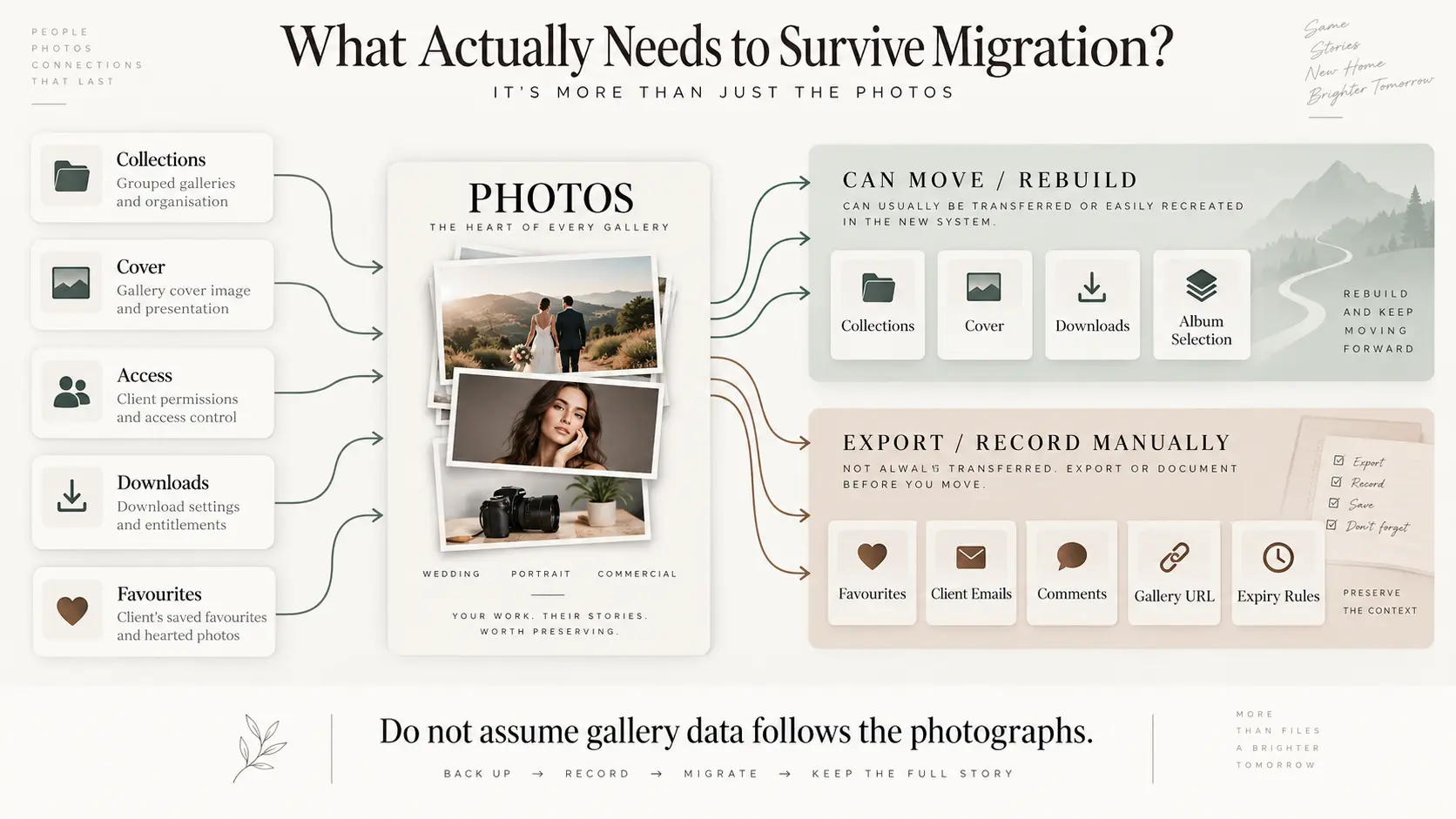
Before moving any active selection gallery, preserve the selection outside the old platform wherever possible. Depending on the software you are leaving, that might mean exporting a CSV, copying filenames, downloading selected files into a dedicated folder, saving comments or producing a studio record of the approved list.
Do not assume that favourites will automatically attach themselves to the same photographs after migration. Gallery systems identify images and client activity differently, and current migration implementations across the market vary significantly in how much client metadata they preserve.
For important jobs, create a locked record such as:
Client Selection — Approved — 18 September 2026
Then preserve the exact filenames associated with that decision.
If a client is actively making selections and the existing system is still functioning properly, it may be safer to let that client finish before migrating the gallery. A platform change should not create an unnecessary second proofing round.
This distinction between an active selection workspace and completed delivery is covered in more detail in our guide to photo proofing vs final client galleries.
5. Rebuild access rules before sending a new link
Moving the photographs is only half of switching photography gallery software. The other half is restoring the rules around those photographs.
Do not reuse an old password simply because it is convenient unless doing so is appropriate for the client and supported by the destination platform. Likewise, do not assume the previous gallery URL will continue to work.
Create the new gallery, set the intended privacy level and recreate the appropriate download, watermark and access rules from your migration register.
If you are moving into GoPickle Client Galleries, the current client-gallery workflow supports organised collections, favourites and shortlisting, controlled downloads, private access, watermark protection and mobile-friendly viewing. Those capabilities make it possible to recreate the delivery workflow around the photographs rather than simply presenting another file folder.
There is an important boundary, however: do not plan a GoPickle migration on the assumption that another gallery platform's metadata will automatically import unless that specific migration path has been confirmed. GoPickle's public Client Galleries information does not currently promise universal third-party metadata migration. Treat external favourites, access history, old URLs and other platform-specific records as items that need to be preserved separately unless the GoPickle team confirms otherwise for the system you are moving from.
That may sound less convenient than promising a one-click migration, but it is the safer way to protect actual client obligations.
6. Build a new-link communication plan
A gallery link can remain in circulation long after the original delivery email.
Clients may have bookmarked it. Parents may have saved it in a messaging thread. A commercial client may have placed it inside an internal project document. A wedding planner may still have the URL in a shared record.
When you switch platforms, assume that some old links will continue to be opened.
Your migration register should therefore contain both:
Old gallery URL → New gallery URL
If the old platform allows a useful redirect or notice, use it where appropriate. If not, keep a record that lets the studio answer a client quickly when somebody returns through an expired link.
For active or recently delivered galleries, send a short migration communication only after the replacement has passed testing. Explain that the gallery has moved, provide the new link, explain any new password or download instructions and state what will happen to the previous gallery.
Avoid sending a generic "we have changed platforms" announcement if the client does not need to do anything. Migration communication should solve an access problem, not create one.
Also check less obvious locations where old URLs may exist:
- Automated delivery emails
- Booking or CRM records
- Client portals
- Website pages
- Blog posts
- QR codes
- Saved email templates
- Studio SOPs
- Team notes
- Printed delivery cards that are still being used
A migration is incomplete while the studio itself continues distributing the old address.
7. Validate the new gallery on desktop and mobile
Never mark a client gallery platform migration as complete because the admin dashboard says the upload finished.
Test the actual client experience.
Open the replacement gallery from a logged-out or private browser. Then open the same link on a phone.
Check the cover, collection order, image count, access controls, favourites, individual downloads and full-gallery downloads where applicable. Make sure watermarks behave as intended. Open several photographs from different collections. Download representative files and confirm that they are the versions you expected.
If the gallery is password-protected, test the password from a clean session rather than from a browser where you are already authenticated.
If the gallery contains several thousand photographs, do not inspect only the first collection. Spot-check the beginning, middle and end of the migration.
A useful migration release check is:
Files correct → structure correct → access correct → selections preserved → downloads tested → old/new links recorded → client communication ready
Our Photography Gallery Delivery Checklist provides a deeper release QC process for privacy, downloads, mobile behaviour and testing the exact link from outside the photographer's logged-in environment.
8. Keep the old platform available until the new one proves itself
Do not cancel your previous gallery subscription immediately after the files appear on the new system.
For a controlled period, keep the source gallery available while you validate migrated jobs and resolve unexpected issues. How long that overlap should last depends on your active client obligations, billing cycle, gallery-retention promises and the amount of history being moved rather than an arbitrary universal number.
During this rollback window, avoid making unnecessary changes to the old galleries. Their main purpose is now recovery.
If a new gallery has the wrong collection order, a missing photograph or an overlooked selection list, you still have a source to check. Once you delete the original environment, troubleshooting becomes much harder.
The rollback window should close only after the studio can answer yes to all of the following:
- Are all priority galleries present?
- Are the expected final files present?
- Are important client selections documented?
- Are privacy and download rules correct?
- Have replacement links been recorded?
- Have active clients received new access where necessary?
- Have mobile and desktop downloads been tested?
- Do you have a separate archive of files that must be retained?
- Is there any unresolved client work still dependent on the old platform?
Only then should cancelling the previous service become an operational step rather than a leap of faith.
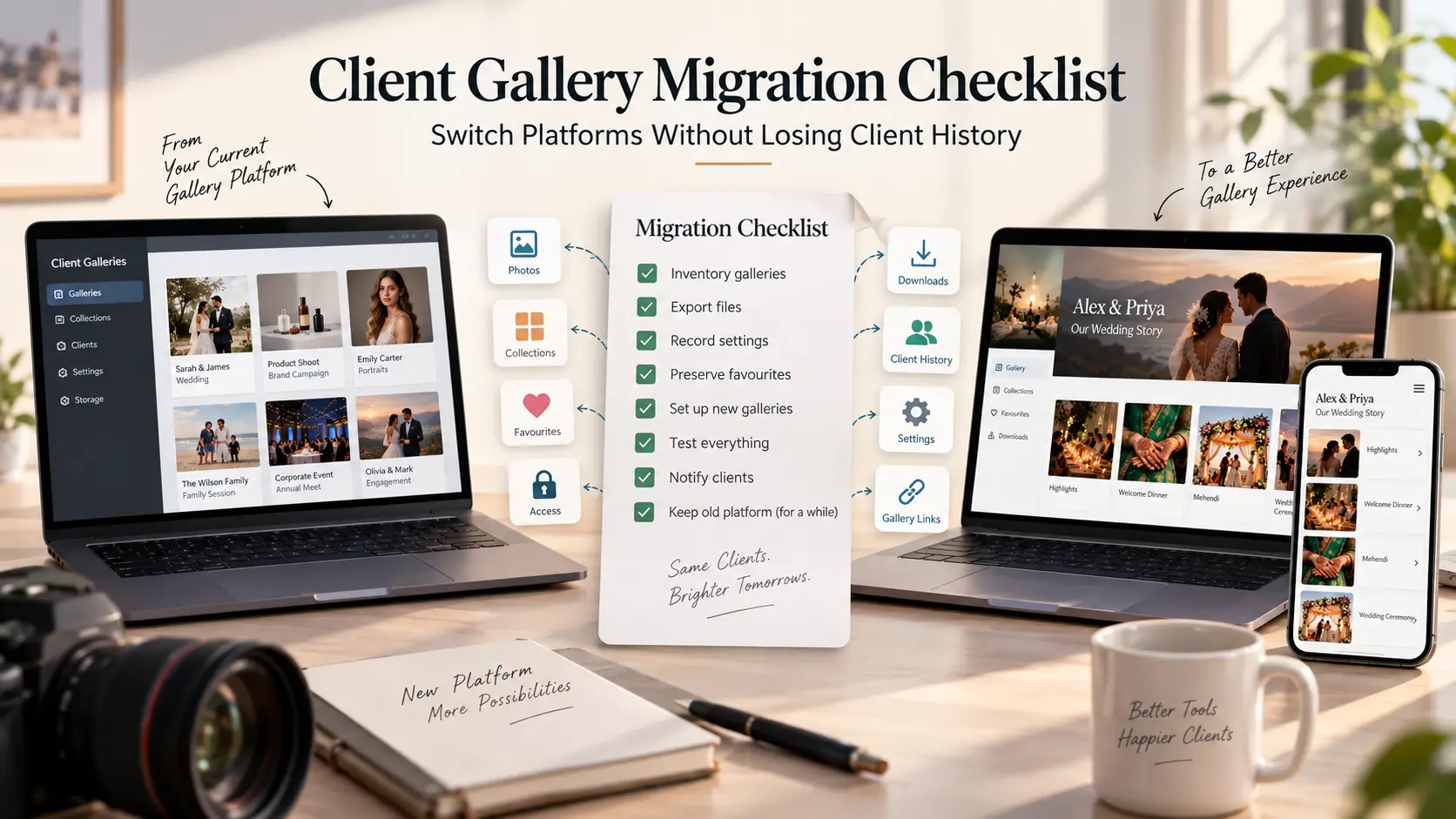
The client gallery migration checklist
Before you switch platforms, work through this final list:
Gallery inventory
Classify galleries as active, recently completed, archived or disposable.
Prioritise galleries with open client obligations.
Record old gallery URLs.
Record client and project details.
Record gallery and collection structure.
Files
Confirm a trusted studio copy of final delivered files.
Recover files from the old platform where necessary.
Verify filenames and representative files.
Compare expected and migrated image counts.
Handle video and other deliverables separately.
Client history
Export or record active favourites.
Preserve album selections.
Preserve approval or retouching selections.
Save relevant comments or instructions.
Record client email/access information that still matters.
Gallery settings
Record cover image.
Record collection names and order.
Record privacy settings.
Record password or access method.
Record download permissions.
Record watermark settings.
Record expiry or retention rules.
New platform
Recreate the correct gallery structure.
Configure access before publishing.
Configure download permissions.
Test favourites where they are part of the new workflow.
Record the replacement URL.
Release
Test from a logged-out desktop browser.
Test on a phone.
Test individual downloads.
Test complete-gallery downloads where enabled.
Send new access details to affected clients.
Update internal records and templates containing the old URL.
Keep the old platform available during the rollback window.
Cancel the previous platform only after migration is reconciled.
Switching gallery software should not make clients start again
The best client gallery platform migration is almost invisible to the client.
Their photographs are still there. The organisation still makes sense. Their access works. Completed selections remain documented. The studio knows which link is current, and nobody has to reconstruct an album shortlist from screenshots six months later.
That is the standard photographers should use when they switch photography gallery software.
The goal is not to move the most galleries in the shortest possible time. It is to move the client relationship attached to each gallery without losing the information that makes that relationship work.
For studios evaluating a move to GoPickle, Client Galleries provide a photography-focused destination for organised, branded client delivery with collections, favourites, controlled downloads, private access and mobile viewing. Start with a small number of real galleries, document what needs to survive the transition, verify the new experience as the client and only then expand the migration across the rest of the archive.