How to Choose Client Gallery Software: A 15-Point Buyer’s Checklist for Photographers
A practical buyer’s guide for photographers evaluating client gallery software. This 15-point checklist covers mobile experience, proofing, downloads, privacy, branding, storage, pricing, client access, workflow integration, and migration—helping studios choose a platform based on real delivery needs rather than feature lists alone.


A client gallery can look excellent in a product demo and still be the wrong system for your photography business.
The gallery may have attractive covers, smooth transitions and a polished grid. None of that tells you what happens when a wedding client opens 1,200 photographs from WhatsApp on an older phone, when a portrait client needs to choose exactly 12 photographs for retouching, or when a commercial client wants one group of images restricted to specific stakeholders.
Those are the situations that expose the difference between a good-looking gallery and client gallery software that actually fits your workflow. The best way to evaluate client gallery software is therefore not to count features.
Start with one real photography job and test what the photographer, client and studio need to do from upload through final delivery.
Use this 15-point buyer’s checklist before choosing a platform, switching providers or committing a large archive to a new system.
First decide what job the gallery needs to perform
Not every photographer needs the same gallery system.
A documentary wedding photographer may mainly need to present and deliver hundreds or thousands of finished photographs beautifully.
A portrait photographer may need clients to select 15 images from 60 proofs before detailed retouching begins.
A family studio may depend heavily on print and wall-art sales.
A commercial photographer may care more about restricted access, stakeholder approvals, file naming and controlled downloads.
A large wedding studio may want galleries connected to bookings, payments, invoices and other studio operations.
Write down your actual workflow before comparing platforms.
For example:
Wedding: Final edit → Organise by event → Private client gallery → Client downloads → Album shortlist → Project closure
Portrait: Cull → Prepare proofs → Client selects 12 → Retouch selected files → Final gallery → Download
Commercial: Review set → Stakeholder selection → Retouch → Approval → Restricted final delivery
If the software is excellent at a workflow your business rarely uses, that capability should not carry much weight in your decision.
The 15-point client gallery software checklist
A practical evaluation should cover five areas:
| Area | What you are testing |
|---|---|
| Client experience | Viewing, mobile use, navigation and branding |
| Production workflow | Organisation, proofing, downloads and file handling |
| Control | Privacy, sharing and watermarks |
| Business fit | Sales, analytics and integration with studio operations |
| Long-term fit | Storage, pricing, support and migration |
Do not mark a feature as present merely because a pricing page says it exists.
Test how it behaves.
1. Test the complete client journey on a phone
Photographers usually build galleries on a large monitor.
Clients often open them through a link inside WhatsApp, email or another mobile app.
Open your test gallery from a phone that is not logged into the photographer account.
Can someone immediately understand:
- Whose gallery they opened?
- How to enter the password?
- Where different events or collections are located?
- How to open an individual photograph?
- How to return to the main gallery?
- How to mark a favourite?
- How to download one photograph?
- How to download the complete delivery?
Do not stop at “responsive design.”
Responsive means the interface adapts to the screen. It does not guarantee that the actual workflow is understandable.
This becomes especially important when galleries are shared with parents, relatives or corporate stakeholders who do not regularly use photography software.
These users are also a useful stress test for the interface. Our guide to what makes a client gallery easy for non-technical clients covers passwords, mobile navigation, downloads and other common points of confusion.
2. Test a realistic gallery size, not the vendor’s sample gallery
A 25-image sample can make almost any gallery platform feel fast and organised.
Use the approximate scale of your actual work.
For example, test:
- 40–80 photographs for a portrait session
- Several hundred photographs for an event
- 800–1,500 photographs for a large wedding
- Multiple collections where one assignment contains several functions
Pay attention to:
- Initial load
- Scrolling
- Switching between collections
- Opening images
- Returning to the grid
- Full-gallery download
- Performance on mobile
Also test the photographer side.
Uploading, sorting and reorganising 1,000 photographs is a very different task from arranging 20 demonstration images.
The right question is not Does the gallery support large uploads?, it is Does the gallery remain practical at the size I regularly deliver?

3. Check how much of your brand survives the handoff
Client gallery software sits at one of the most visible points in the customer journey.
The client is finally receiving the work they hired you to create.
Evaluate:
- Studio logo
- Gallery cover
- Typography and presentation controls
- Studio name
- Contact information
- Social or portfolio links
- Vendor branding
- Custom domain options
- Branding inside client emails
- Branding on mobile
Do not automatically pay for every white-label feature. Decide how much branding actually matters to your positioning.
A high-volume school photography business may have different priorities from a luxury wedding studio. Also check whether branding changes between plans. A platform may technically support white labelling while reserving it for a higher subscription tier.
4. Check whether large assignments can be organised around the client
Your storage structure and your client’s viewing structure do not have to be identical.
A wedding studio might store source files by camera and photographer but present the finished work as:
Preparations → Haldi → Ceremony → Couple Portraits → Reception
A corporate assignment might use:
Leadership → Employees → Workplace → Event → Press Selects
Look for collections, folders, moments or another equivalent structure.
Then test whether clients can move between those sections naturally without needing to understand your internal file organisation.
Good gallery organisation becomes more important as image count increases.
A 50-image portrait gallery can survive weak organisation.
A 1,500-image wedding gallery usually cannot.
5. Decide whether you need delivery, proofing or both
This is one of the biggest differences between photography workflows.
A final client gallery tells the client:
These are your finished photographs.
If those two stages are easy to confuse in your workflow, our guide to photo proofing vs final client gallery explains where selection, approval, retouching and finished delivery should sit.
A proofing gallery asks:
Which photographs should move to the next stage?
If you use selection-before-retouching, album shortlisting or commercial approvals, investigate proofing much more deeply than whether the platform has a heart icon.
Test whether you can:
- Ask the client to select a specific number of photographs
- Let clients create more than one list
- Distinguish casual favourites from final selections
- Receive comments or notes
- See when selections change
- Export or identify selected filenames
- Give editors an unambiguous selection set
A photographer who never asks clients to make selections should not overvalue these capabilities.
If selection happens before detailed editing in your studio, the client photo selection before retouching workflow shows how to move from internal culling to client selection, lock the chosen set and only then begin final retouching.
6. Test what “download” actually means
A checkbox saying Downloads: Yes tells you very little.
Find out:
- Can clients download individual images?
- Can they download selected images?
- Can they download an entire collection?
- Can they download the complete gallery?
- Are multiple resolutions available?
- Can different users receive different permissions?
- Can downloads be restricted?
- Can you see what has been downloaded?
- What happens on mobile?
Do not assume every platform interprets “downloads” the same way.
Perform an actual download.
Open the resulting JPEG and confirm:
- File dimensions
- Compression
- Watermark state
- File naming
- Image quality
- Whether the mobile process is understandable
The feature matters only if the resulting file and workflow match what you intended to deliver.
7. Make sure download sizes match how you deliver photographs
Photographers understand resolution.
Clients usually think in outcomes.
They want to know:
- Which file should I print?
- Which one should I save permanently?
- Which is easier to send on WhatsApp?
- Which should I upload to Instagram?
If your workflow needs multiple delivery sizes, check whether the gallery lets you present them clearly.
If you are deciding which resolutions to provide, see our guide to what photo download sizes photographers should offer clients.
For many studios, two understandable options are more useful than four technical ones:
Print and Archive
Large finished file for printing and permanent storage.
Social and Mobile
Smaller file for everyday digital sharing.
If the software generates alternate sizes automatically, download a sample and inspect what it actually produces.
8. Check whether preview and final-delivery permissions can be different
Proofing files and final files often need different rules.
A portrait workflow might use:
Proof stage
- Watermarked previews
- Favourites enabled
- Maximum 15 selections
- Full-resolution downloads disabled
Final stage
- Finished retouched photographs
- Watermark removed
- Full-quality downloads enabled
Ask whether the gallery makes that transition easy.
A platform that requires rebuilding everything from scratch after selection creates extra production work even if both proofing and final delivery technically exist.
Also check whether favourites, approved selections and downloaded images are treated as separate actions.
They may look similar from the client side but mean completely different things for your production team.
9. Evaluate privacy as several controls, not one password
A password is useful. It is not the entire privacy model.
Depending on the photography work you handle, investigate:
- Public versus private galleries
- Search-engine visibility
- Direct-link access
- Gallery passwords
- Client-only access
- Download restrictions
- Restricted collections
- Guest permissions
- Gallery expiry
- Visitor history
- Link sharing
For a deeper workflow around passwords, family access, downloads and guest sharing, read our guide to client album privacy and access.
Do not assume “private gallery” means:
Only the paying client can access it.
Ask what happens when the client forwards the link.
Ask whether the next person can:
- View
- Favourite
- Download previews
- Download full-resolution files
- Share the gallery again
Those are separate decisions.
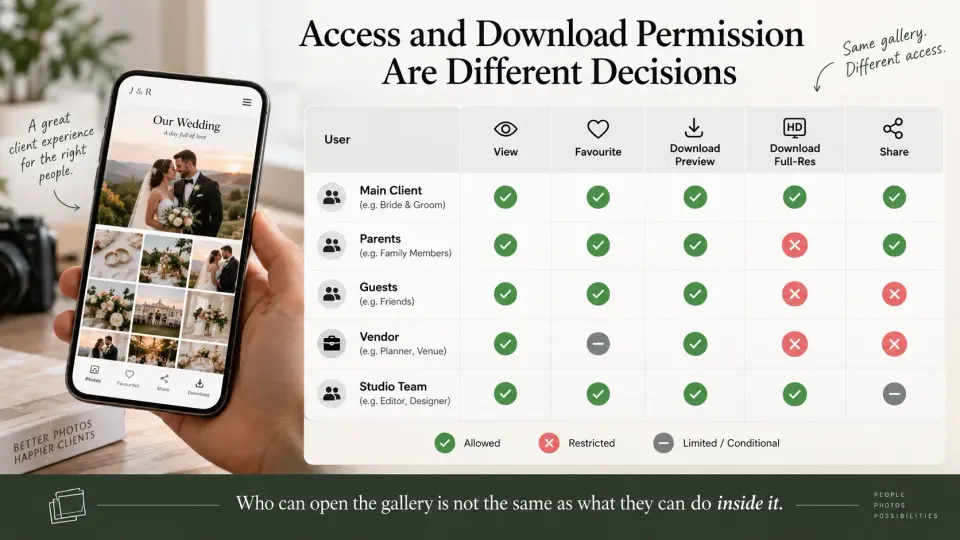
10. Decide who else should be able to see or download photographs
The paying client is not always the only visitor.
A wedding gallery may also reach:
- Parents
- Family members
- Guests
- Wedding planners
- Decorators
- Makeup artists
- Venues
- Other vendors
Commercial work may involve:
- Marketing teams
- Agencies
- PR teams
- Executives
- External designers
Decide whether those people should receive the same access as the main client.
The buyer’s question is not simply Can I share the gallery?, it is Can I control what different recipients are allowed to do after it is shared?
A wedding planner may only need to view selected photographs.
Parents may be allowed to download previews. The main client may need full-resolution downloads. A studio editor may need access to selected originals. Your software should support the access model your business actually uses.
11. Check watermark behaviour using downloaded files
Do not judge watermark functionality from screenshots.
Create a proof gallery and test:
- What the watermark looks like on desktop.
- What it looks like on mobile.
- Whether it covers important faces or details.
- Whether clients can still evaluate the photograph.
- Whether permitted final downloads correctly remove or retain it.
Watermarks should support the business rule you are trying to enforce.
Adding a large logo across every finished wedding photograph simply because the feature exists is not automatically a better client experience.
Also distinguish between:
Watermarking the gallery preview
and
Embedding branding permanently into the downloaded file
Those are different workflows.
12. Evaluate print and digital sales only if sales matter to your model
Some photographers derive meaningful revenue from:
- Prints
- Frames
- Albums
- Cards
- Wall art
- Additional digital photographs
Others include digital delivery in the photography package and do almost no gallery-based selling.
If commerce matters, compare:
- Available products
- Print fulfilment
- Shipping
- Product markup
- Payment processing
- Transaction fees
- Tax handling
- Digital upsells
- Discounts
- Sales campaigns
If you mainly deliver paid photography assignments, a sophisticated storefront may add very little value.
This is one of the easiest places to become distracted by features that look impressive but do not solve your actual operational problem.
A wedding studio that earns almost all of its revenue before delivery may care much more about:
- Booking visibility
- Payment status
- Crew assignments
- Client selection
- Delivery status
than about automated print campaigns.
13. Check what happens on the photographer side after the client acts
Client gallery comparisons often focus almost entirely on what the client sees.
The photographer’s workflow deserves equal scrutiny.
Suppose a client marks 100 wedding photographs for an album.
What happens next?
Can you identify those files immediately?
Can another employee see the selection?
Can you export or retrieve the filenames?
Can you tell whether the selection changed?
Can you see who downloaded what?
Does someone need to manually copy information from the gallery into a spreadsheet, WhatsApp message or another system?
The value of gallery activity is not simply having an analytics screen.
The real question is:
Does the client’s action become a usable next step for the studio?
For example:
Client selects photographs → Album designer receives selection
Client downloads gallery → Delivery status can be closed
Client has not selected photographs → Follow-up remains visible
Client requests changes → Job returns to production
That connection between client activity and studio workflow is much more valuable than activity data sitting in isolation.
14. Calculate storage and retention against a real year of photography
Storage numbers become meaningful only after you compare them with your output.
Estimate:
Average finished gallery size × galleries delivered per year × retention period
For example:
4 GB per finished gallery × 80 assignments = approximately 320 GB of new gallery data per year.
That is before considering:
- Duplicate exports
- Video
- Historical galleries
- Long-term client access
- Backup copies
Then investigate:
- Included storage
- Additional-storage pricing
- Gallery limits
- File-size restrictions
- Archive behaviour
- Gallery expiry
- Deleted-file recovery
- How long clients can access galleries
- Whether older galleries still consume storage
- Whether you can remove or export data easily
“Unlimited galleries” and “unlimited storage” are not the same thing. Also remember that a client gallery is not automatically your archive or backup strategy. You should know what happens if you stop using the service or need to recover an older project.
15. Compare total cost, support and the cost of leaving
Monthly subscription price is only one part of client gallery software cost.
Calculate the cost of the workflow you actually need.
Include:
- Base subscription
- Required storage
- Additional users
- Branding tier
- E-commerce fees
- Transaction fees
- Extra gallery charges
- Other studio software still required
- Migration effort
- Staff retraining
This becomes particularly important if the gallery is one of several disconnected systems in your studio.
You may currently have one platform for:
- Leads
- Quotations
- Bookings
- Crew
- Invoices
- Payments
- Client galleries
Each tool may work well individually.
The operational cost appears when information has to be moved between them manually.
Then ask one question that is often ignored:
What happens if I want to leave?
Find out whether you can recover:
- Uploaded files
- Gallery structure
- Client information
- Favourite lists
- Selection records
- Activity records
- Sales data
You may not need every item.
But you should understand the exit path before moving hundreds of client projects into the platform.
Red flags to look for during a client gallery software demo
A polished demonstration is useful, but watch for situations where the demo avoids the difficult parts.
Every sample contains only a few photographs
Ask to test something that resembles your actual work.
A 20-photo gallery tells you little about a 1,200-photo wedding.
“Proofing” means only adding a heart
If selections drive paid retouching, album production or approvals, investigate what happens after the client clicks that heart.
“Private” is never explained
Ask what happens when the link is forwarded.
“Full-resolution download” is mentioned without showing the file
Download one and inspect it.
Desktop gets all the attention
Open the gallery on a phone.
Storage looks generous but retention is unclear
Ask what happens to inactive or old galleries.
Client activity exists but does not trigger a workflow
Analytics are useful only if the studio knows what action follows.
Gallery delivery remains disconnected from the rest of the studio
If every client action has to be copied manually into another tool, the gallery may still be creating operational work even if the client-facing experience is excellent.
Run one real assignment before committing
A proper evaluation does not need months.
Choose one completed project whose workflow you already understand.
A wedding is particularly useful because it can test:
- Image volume
- Multiple collections
- Mobile sharing
- Family access
- Favourites
- Downloads
- Album selections
- Client activity
Set up the full gallery.
Before treating the test as complete, run through a photography gallery delivery checklist covering exports, organisation, privacy, download settings and the final client-view test.
Then ask someone who has never used the platform to act as the client.
Give them only the message you would normally send.
Ask them to:
- Open the gallery.
- Enter any required access code.
- Find the ceremony photographs.
- Mark five favourites.
- Download one full-quality image.
- Download a smaller file for mobile sharing.
- Find the full-gallery download.
- Share the gallery with someone else.
Do not coach them. Every question they ask reveals something about the client experience. Then return to the photographer dashboard.
Can you see what they selected?
Can you tell whether they downloaded anything?
Can you identify the selected filenames?
Can another team member continue the job without asking you what happened?
Can you tell whether the job is finished or still waiting on the client?
Those questions reveal much more than another hour spent comparing feature grids.

Use a weighted scorecard instead of counting features
Not every capability should receive one point.
Create three categories.
| Priority | Meaning | Score |
|---|---|---|
| Essential | Your workflow breaks without it | 3 |
| Useful | Improves the workflow materially | 1 |
| Irrelevant | You rarely or never use it | 0 |
Then score each platform against your requirements.
A wedding studio might rate:
| Requirement | Priority |
|---|---|
| Large galleries | 3 |
| Mobile experience | 3 |
| Full-gallery downloads | 3 |
| Album shortlisting | 3 |
| Private access | 3 |
| Gallery organisation | 3 |
| Print storefront | 0 |
| Client activity | 1 |
| Studio workflow connection | 3 |
| Custom domain | 1 |
A family portrait studio that depends heavily on print sales could score the same categories completely differently.
This is why asking:
Which client gallery platform has the most features?
is usually the wrong question.
Ask:
Which platform scores highest against the workflow our studio actually uses?
Where GoPickle fits into this checklist
A good client gallery should not only present photographs beautifully.
For many photography studios, it should also reduce the amount of manual coordination required after the shoot.
That is where GoPickle Client Galleries for photographers fit into the broader studio workflow.
GoPickle is built around the idea that gallery delivery is not an isolated final step.
It sits after a chain of work that may already include:
Lead → Quotation → Booking → Crew Assignment → Payment → Shoot → Gallery Delivery → Client Selection → Project Closure
Instead of treating the gallery as a separate system, GoPickle keeps it connected to the photography business workflow around it.
Organise large deliveries into client-friendly moments
Large weddings and events do not need to appear as one continuous stream of photographs.
GoPickle Client Galleries can organise delivery into moments or sections so clients can move through different parts of the event more naturally.
That directly addresses the organisation problem discussed earlier in this checklist.
Give clients a mobile-friendly gallery experience
Clients can open galleries from their phone, move through photographs, view different moments and interact with the delivery without relying on shared folders.
This matters because mobile behaviour should be tested as part of the buying decision, not treated as a secondary interface.
Let clients favourite and shortlist photographs
Where the workflow requires client input, favourites and shortlisting can help move the project from delivery into the next production stage.
That can support use cases such as:
- Album selections
- Shortlists
- Retouching choices
- Client preferences
The important point is that the client action becomes part of the studio workflow rather than an informal list arriving separately through WhatsApp.
Control access to the gallery
GoPickle supports password-protected client galleries, giving photographers a way to restrict gallery access instead of treating every delivery link as public.
That addresses one of the core privacy requirements in the buyer checklist.
Control what clients can download
Photographers can decide how downloads should work rather than giving every recipient unrestricted access automatically.
This is useful when the studio wants different delivery behaviour for:
- Final photographs
- Preview files
- Selected photographs
- Full galleries
Apply watermarking where the workflow needs it
Watermarking can be used where previews or controlled client viewing require it, rather than permanently modifying every delivered photograph.
That is particularly useful in workflows where proofing and final delivery require different rules.
Keep client delivery connected to the studio
The larger advantage is not one gallery feature in isolation.
GoPickle also includes photography-studio workflows for:
- Leads
- Quotations
- Bookings
- Crew
- Invoices
- Payments
- Client galleries
- AI Guest Galleries
- Reports
That matters if your current gallery platform solves photo delivery well but still leaves the studio moving information manually between several unrelated systems.
A gallery can be excellent for the client and still create unnecessary admin for the studio.
The stronger workflow is:
Booking exists → Gallery belongs to the same client workflow → Client action is visible → Studio knows the next step
rather than:
Gallery sent → Check another system → Check WhatsApp → Update spreadsheet → Ask editor → Update booking manually
That difference becomes more significant as the number of jobs, photographers and team members increases.
For a broader explanation of the category, see our guide to client gallery software for professional photographers.
You can also review the current GoPickle pricing before deciding what gallery capacity and plan structure fits your studio.
Client gallery software FAQ
What is the most important feature in client gallery software?
There is no single feature that matters most for every photographer.
For most studios, the baseline should include:
- Easy mobile viewing
- Clear gallery organisation
- Reliable downloads
- Appropriate privacy controls
After that, priorities depend on the business.
A portrait studio may care heavily about proofing and selections.
A wedding studio may care more about large deliveries and album shortlisting.
A larger studio may prioritise integration with bookings, payments and team workflows.
Is a free client gallery plan enough for a professional photographer?
It can be enough to test a platform or operate at low volume.
Before depending on one commercially, check:
- Storage
- Gallery limits
- Branding restrictions
- Download controls
- Proofing limits
- User limits
- What happens as your volume grows
A free plan is useful only if its limitations fit your real delivery workflow.
Is Google Drive enough instead of client gallery software?
Google Drive can work perfectly well for file transfer and simple delivery.
Dedicated client gallery software becomes more useful when you need:
- Photography-focused presentation
- Favourites
- Client selections
- Controlled downloads
- Organised collections
- Better mobile viewing
- Branding
- Privacy controls
- Client activity
If you are currently delivering through folders and links, our comparison of Google Drive vs professional client galleries for photographers explains where the difference becomes meaningful.
Use the simplest system that meets the actual requirement.
Should proofing and final delivery happen in the same software?
They can.
The important issue is whether the software can apply different rules at each stage.
A proofing gallery may require:
- Watermarks
- Restricted downloads
- Favourites
- Selection limits
A final gallery may require:
- Finished files
- Full-quality downloads
- Cleaner presentation
- Fewer restrictions
The workflow matters more than whether the software labels both stages as one product.
How much client gallery storage do photographers need?
Calculate it from your own output.
Use:
Average gallery size × annual jobs × online retention period
A portrait photographer delivering 40 finished images and a wedding studio delivering 1,500 photographs will have very different storage requirements.
Should photographers switch gallery software just because another platform has more features?
Usually not.
Switch when the current system creates a recurring operational problem.
Examples include:
- Poor mobile usability
- Inadequate proofing
- Weak access controls
- Costly storage
- Client confusion
- Difficult downloads
- Disconnected client actions
- Too many separate software subscriptions
Migration itself has a cost.
The benefit should be meaningful enough to justify moving active workflows and training clients or staff on a new system.
Choose the workflow before you choose the software
Client gallery software should be judged at the point where features become actions.
Can the client open the gallery easily?
Can they find the right photographs?
Can they complete the selection you need?
Can they download the correct files?
Can you control who gets access?
Can your studio see what the client did?
And once the client takes an action, does your team know what needs to happen next?
Those questions tell you more than a gallery theme, a feature count or a polished software demo.
Choose one real assignment. Test the complete journey. Score the capabilities that actually matter. Then choose the gallery system that fits the way your photography business really operates.
If the goal is not only better photo delivery but also keeping client galleries connected to leads, bookings, crew, payments and the rest of the studio workflow, GoPickle Client Galleries are designed around that broader operating model.